
Bulk Uploading Chapters from Files
Last updated: 2026-03-29
On This Page
Bulk upload lets you import multiple chapters at once from files you already have. Whether you're migrating a backlog from another platform, uploading a pre-written manuscript, or importing chapters from your writing tool of choice, bulk upload handles the conversion and lets you review everything before creating chapters.
This guide covers supported formats, how to prepare your files for clean imports, and the full upload workflow.
When to Use Bulk Upload
Bulk upload is designed for three common scenarios:
- Migrating from another platform. If you're moving a story from Wattpad, Patreon, or Scribble Hub, you can export your chapters and upload them here in one step.
- Uploading a pre-written manuscript. If you've written ahead in Google Docs, Word, Scrivener, or Obsidian, bulk upload lets you import everything at once instead of copying and pasting chapter by chapter.
- Building a release buffer. Upload a batch of chapters as drafts, then use the Release Queue to schedule them on a consistent cadence.
Supported File Formats
| Format | Extension | Best For | Notes |
|---|---|---|---|
| Word / Google Docs | .docx |
Most authors | Export from Google Docs via File > Download > .docx. Formatting (bold, italic, lists, images) is preserved. |
| EPUB | .epub |
Scrivener, Royal Road exports, calibre | Chapters are already split by the EPUB's table of contents. Titles come from the TOC automatically. |
| Markdown | .md |
Obsidian, VS Code, technical authors | Headings, bold, italic, lists, links, and code blocks are converted. |
| HTML | .html |
Scrivener "Copy as HTML" exports | Raw HTML is cleaned and converted to editor-compatible formatting. |
| Plain Text | .txt |
Simple drafts | Text is split into paragraphs at blank lines. No formatting is applied. |
Preparing Your Files
Structuring Documents for Chapter Splitting
If you have a single file that contains your entire novel (or multiple chapters), bulk upload can automatically split it into individual chapters. The splitting works by detecting headings in your document:
- If your file has two or more Heading 1 elements, it splits at each Heading 1. The heading text becomes the chapter title.
- If your file has no Heading 1 elements but has two or more Heading 2 elements, it splits at each Heading 2 instead.
- If your file has fewer than two headings, it's treated as a single chapter.
In Google Docs or Word, apply the "Heading 1" paragraph style to each chapter title. Don't just make the text bold and large — use the actual heading style so the structure is recognized during import.
Tip: If you have a large document (over 15,000 words) with no headings, you'll see a warning suggesting you add headings and re-upload. Adding headings before uploading gives you much cleaner results than splitting manually afterward.
EPUB Files
EPUB files are the cleanest format for bulk import because they already contain chapter structure. Each chapter in the EPUB's spine becomes a separate chapter on your story, and titles are pulled from the table of contents.
You can get EPUB files from:
- Scrivener — Compile your project as EPUB
- Royal Road — Download your fiction as EPUB from your author dashboard
- calibre — Convert from other formats to EPUB
- Google Docs — File > Download > EPUB
Plain Text and Markdown
Plain text files (.txt) are always imported as a single chapter, with paragraphs created at each blank line. No formatting is applied.
Markdown files (.md) support full formatting — headings, bold, italic, lists, blockquotes, code blocks, and links. If your Markdown file contains multiple # Heading 1 or ## Heading 2 elements, it will be split into chapters just like .docx files.
Uploading Chapters
Starting a Bulk Upload
- Go to your Author Dashboard > Stories tab
- Click on the story you want to add chapters to
- Click the "Bulk Upload" button in the chapter controls bar (next to "Release Queue" and "Add Chapter")
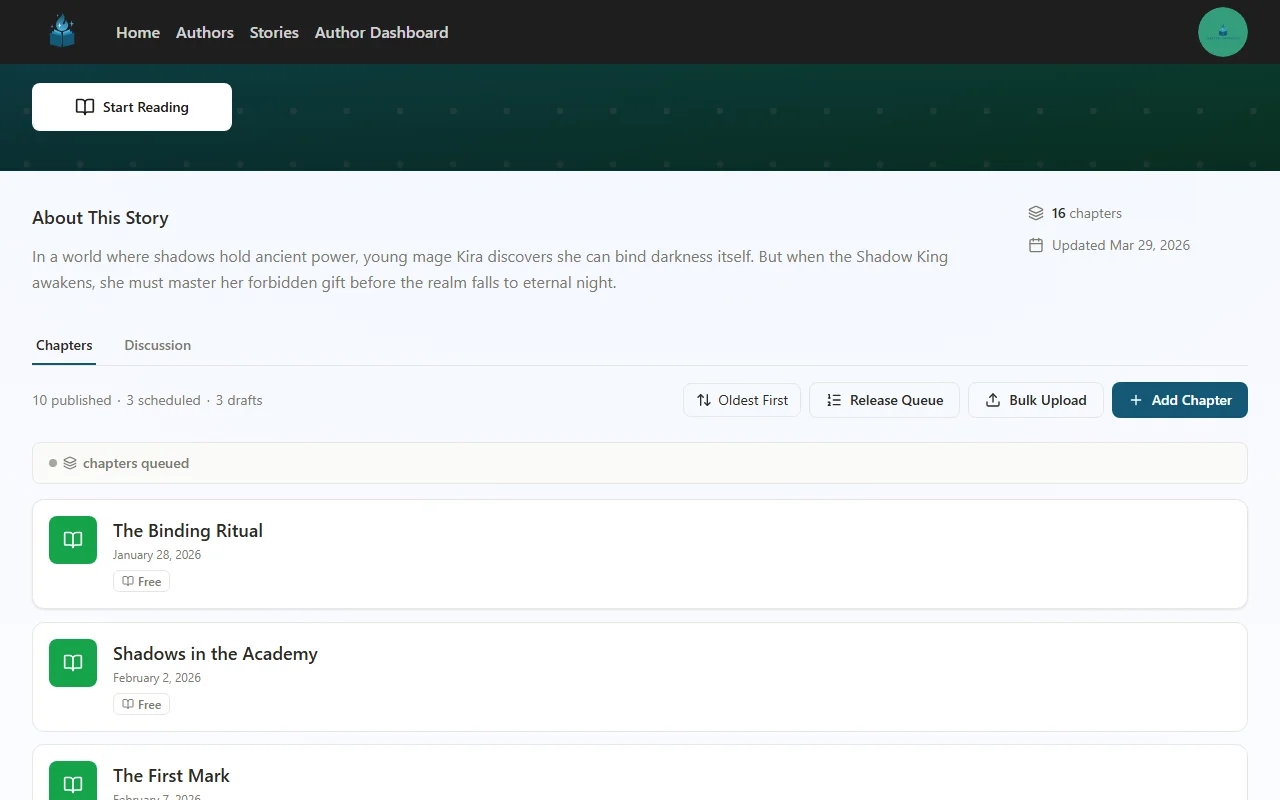
If your story doesn't have any chapters yet, you'll also see an "Or bulk upload existing chapters" link below the "Add First Chapter" button.
The Upload Area
The upload page opens with a drag-and-drop area where you can select your files.
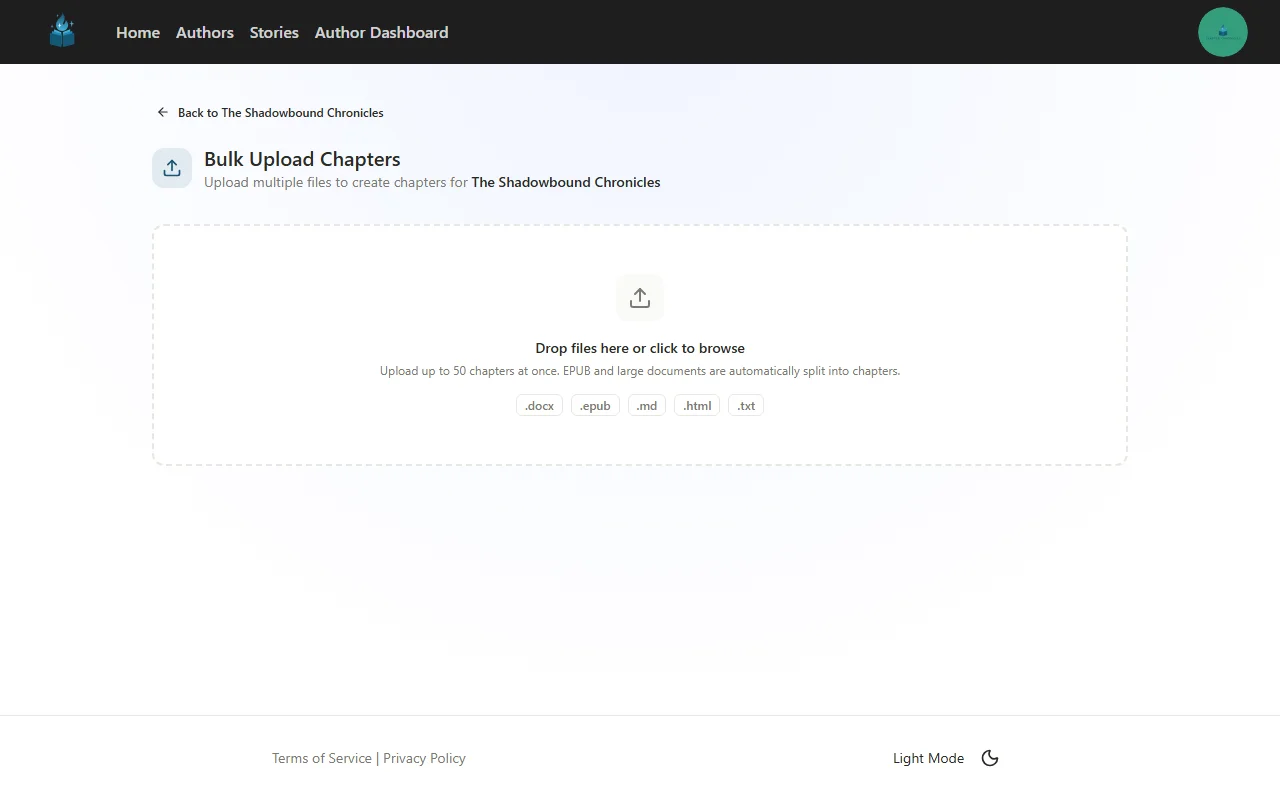
You can either:
- Drag files from your file explorer directly onto the drop zone
- Click the drop zone to open a file picker
Select as many files as you need — you can upload up to 50 chapters at a time. You can mix formats in a single upload (for example, an EPUB and several individual .docx files).
Reviewing Parsed Chapters
After your files are processed, you'll see every detected chapter in a list alongside the upload settings panel. Each chapter shows its title, word count, and a content preview you can expand.
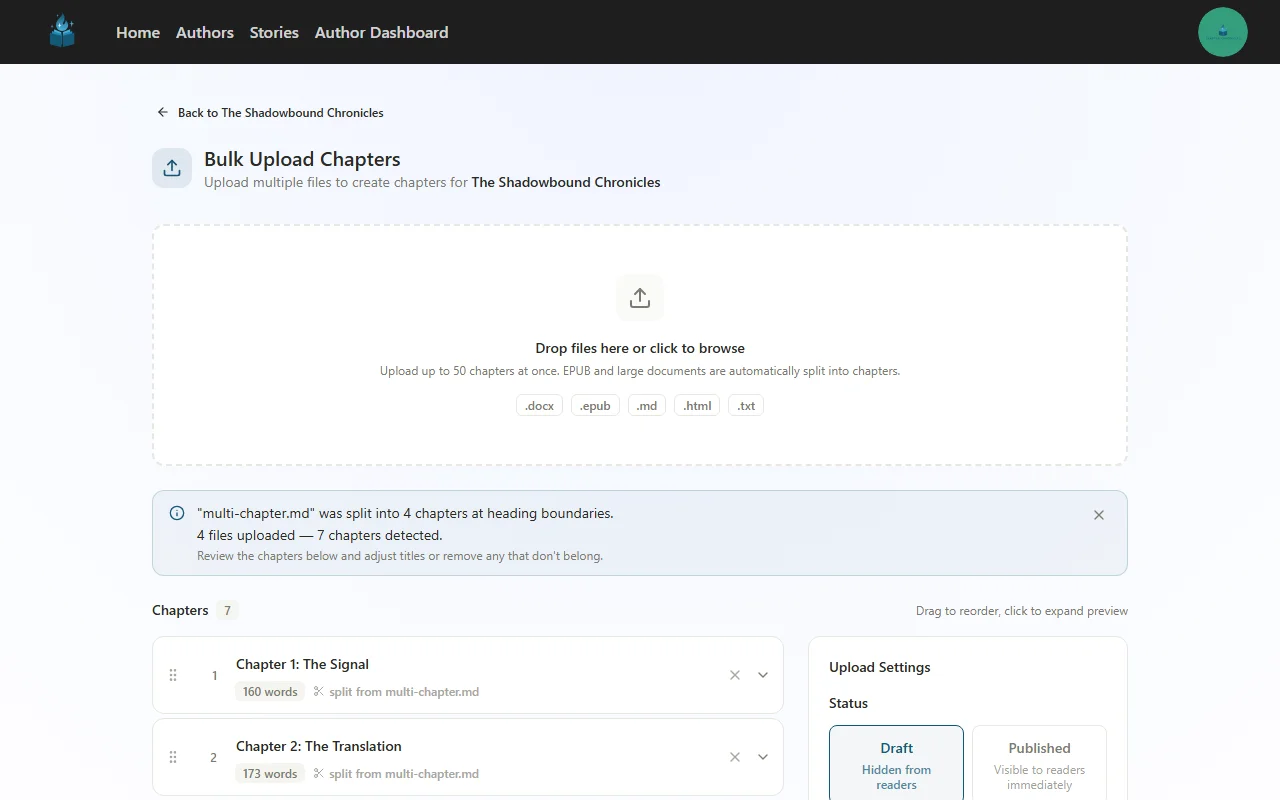
If any file was split into multiple chapters (from an EPUB or a document with headings), you'll see a summary banner explaining what happened — for example, "manuscript.docx was split into 12 chapters at H1 headings."
Each chapter row also shows where it came from, so you can easily trace which file produced which chapters.
Editing Titles and Reordering
Before uploading, you can:
- Edit any chapter title by clicking directly on it in the list
- Drag chapters to reorder them (grab the handle on the left side of each row)
- Remove chapters you don't want to include (click the X button)
- Expand a chapter to preview its formatted content and check that formatting was preserved
Configuring Upload Settings
The settings panel on the right side of the review screen lets you configure all chapters at once.
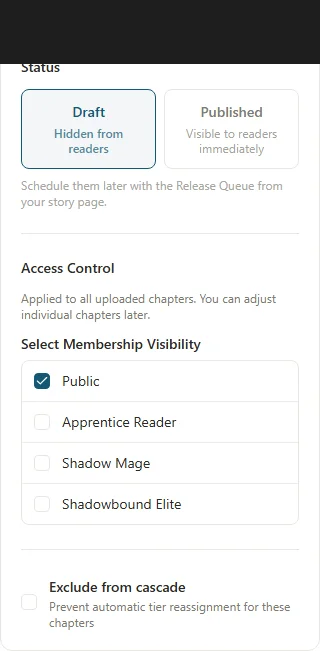
Draft vs. Published
- Draft (default) — Chapters are created but hidden from readers. This is the recommended option if you want to schedule them using the Release Queue for a consistent publishing cadence.
- Published — Chapters go live immediately and are visible to readers right away. A confirmation dialog will ask you to verify before publishing, since this action affects what readers see.
Tip: If you're migrating a backlog and want chapters to go live on a schedule, upload as Draft and then open the Release Queue from your story page. The Release Queue lets you set a cadence (every 3 days, weekly, etc.) and batch-schedule all your new drafts at once. This is the fastest way to build a multi-week publishing buffer.
Access Control
You can assign membership tier visibility to all uploaded chapters at once. Choose which tiers can access the content, or leave it as Public for free access.
For more details on setting up membership tiers and gating strategies, see Gate Chapters Behind Memberships.
Cascade Exclusion
If you have tier cascade rules configured for your story, you can toggle "Exclude from cascade" to prevent these chapters from being automatically reassigned to different tiers over time.
Single-File Import in the Chapter Editor
If you just need to import content into a single chapter (rather than uploading in bulk), you can do it directly from the chapter editor:
- Open any chapter in the editor
- In the Content tab, click the "Import from File" button
- Select a
.docx,.epub,.md,.html, or.txtfile - The editor content is replaced with the file's content
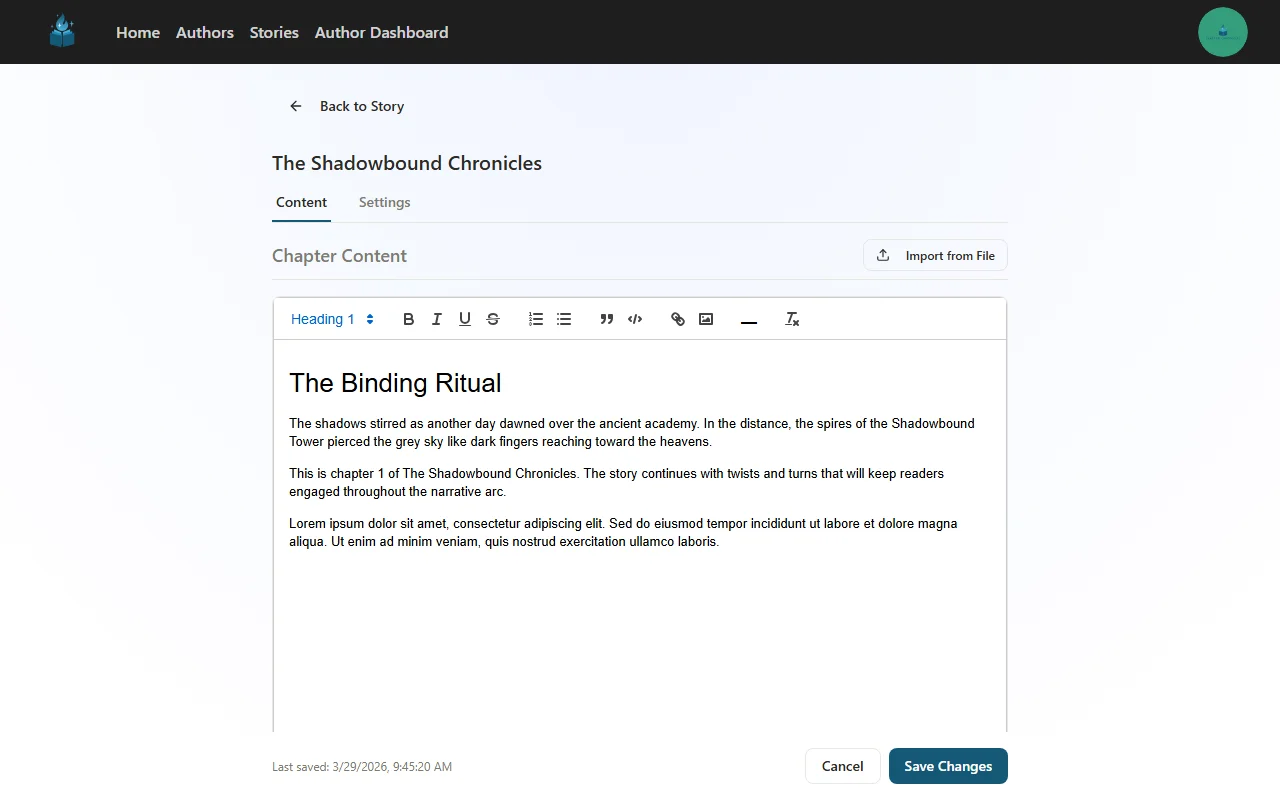
If the editor already has content, you'll be asked to confirm before replacing it.
Migrating from Another Platform
From Royal Road
Royal Road lets you download your fiction as an EPUB file from your author dashboard. Once you have the EPUB:
- Go to your story on Chapter Chronicles and click Bulk Upload
- Drop the
.epubfile into the upload area - Your chapters will appear with titles from Royal Road's table of contents
- Review, adjust if needed, and upload as Draft or Published
From Google Docs or Word
If your chapters are in separate Google Docs or Word files:
- Download each document as
.docx(in Google Docs: File > Download > Microsoft Word) - Select all the
.docxfiles and drop them into the upload area - Each file becomes one chapter
If your entire novel is in a single document, make sure each chapter starts with a Heading 1 paragraph style. The document will be automatically split at each heading.
From Other Platforms
Most platforms allow some form of content export. If you can get your content as EPUB, DOCX, or HTML files, bulk upload will handle the conversion. If your platform only supports copy-paste, you can paste your chapters into individual .txt files and upload those.
If you need help migrating from a specific platform, reach out to us at support@chapterchronicles.com.
After Upload: What's Next?
Once your chapters are uploaded, here are common next steps:
- Schedule your chapters — Open the Release Queue from your story page to set a publishing cadence for your new drafts
- Set up membership tiers — If you haven't already, create subscription tiers and assign access to your chapters
- Edit individual chapters — Click any chapter from your story page to open the full editor, where you can fine-tune content, adjust settings, or upload images
Frequently Asked Questions
What file formats can I upload?
Is there a limit on how many chapters I can upload at once?
Will my formatting be preserved?
How does document splitting work?
Can I import a single file into an existing chapter?
Ready to Start Publishing?
Join authors building their creative business on Chapter Chronicles. Free to start, simple pricing when you earn.
Sign Up Free